Shared Storage
This page describes how to download books from your server onto an Android device and make them available to other apps.
Reasons you may want to do this include:
- Improve your listening experience by reducing lag from poor internet connections
- Limit the impact of audiobook listening on your mobile data usage
- Let other apps on your device access ABS downloads
The ABS app does not support media from other sources. To listen to media in the ABS app, files must be downloaded through the ABS app. Shared storage is only intended to let other apps access ABS media.
Set Up Shared Storage
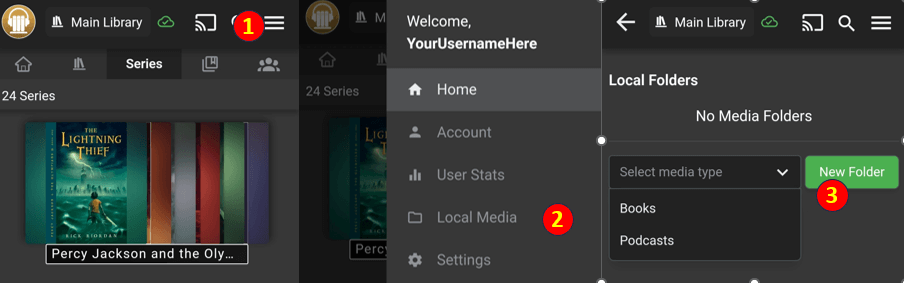
- Open the three-dot menu.
- Select
Local Media. - Under
Select Media Type, choose whether you are adding a folder for books or podcasts. For this example, we will be downloading books. Then tapNew Folder.
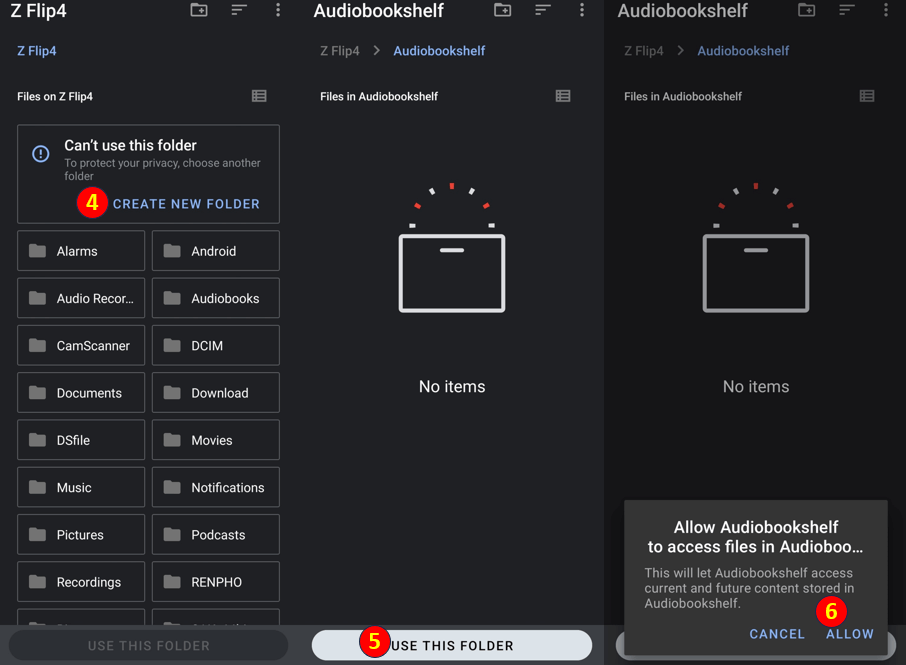
The next few steps vary by device. This example is from a Samsung Z Flip4, but other devices should follow a similar process.
- Select
Create New Folder. - Choose any location and folder name you want. For this example, the folder is named
Audiobookshelfand placed at the storage root. - Select
Use This Folder. - Allow Audiobookshelf to access the new folder.
Download a Book
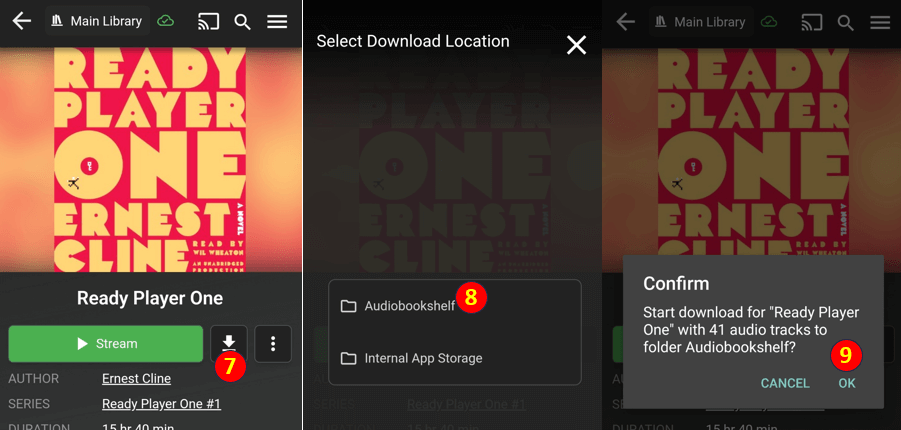
- Open any audiobook you want to download. The green button will say
Streamuntil the download is complete. SelectDownload. - Select the folder you created earlier.
- You can select
Internal App Storageif you want, but the files will be stored in the app's default storage location. - Press
OKto confirm the download.
Finished
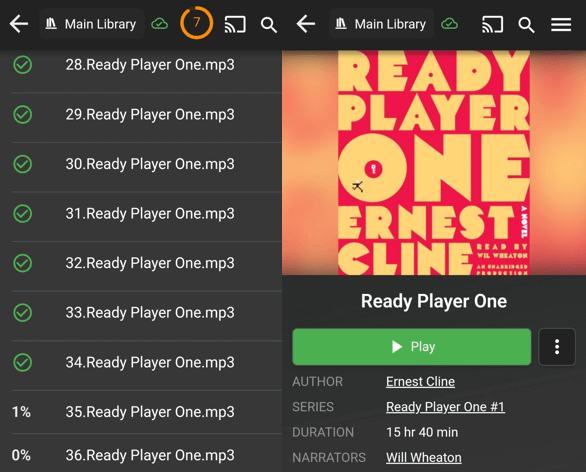
When the download is complete, a new icon appears at the top of the app showing how many files are downloading. Tap that icon to view a detailed list of the files being downloaded.
Once the download finishes, the green button changes from Stream to Play.